 how-to
Smart Garage Door Connectivity: Troubleshooting Guide
Table of Contents
- What You'll Need Before Troubleshooting
- Power Cycle Your Opener and Router
- Check Your Wi-Fi Signal Strength and Network Credentials
- How to Add Wi-Fi to Your Existing Garage Door Opener
- Resetting Your Smart Garage Door Opener
- Diagnose LED Status Lights and Connectivity Errors
- Advanced Troubleshooting for Smart Garage Door Connectivity
- Common Mistakes to Avoid
- Frequently Asked Questions
Last Updated: September 30, 2026
What You'll Need Before Troubleshooting
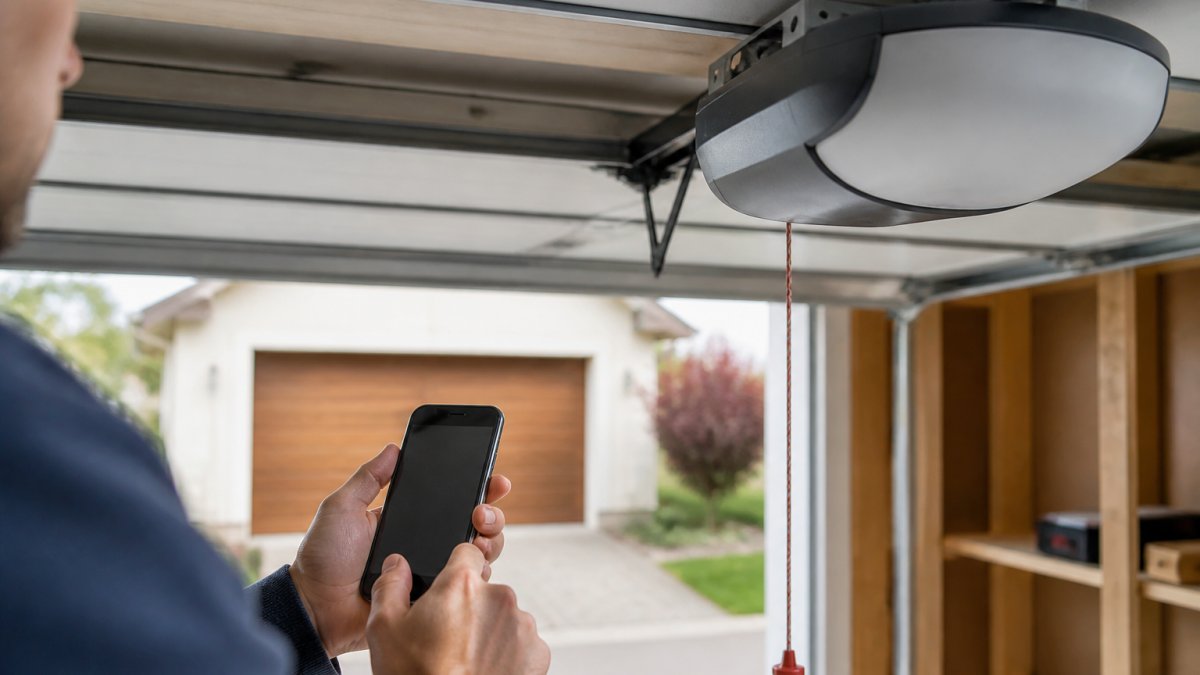
Before you start troubleshooting your smart garage door connectivity, gather a few basic items. You'll need your smartphone with the garage door app installed, your Wi-Fi network name and password, and access to your router. Have your garage door opener's manual nearby if possible, it contains the factory reset instructions specific to your model.
Make sure your smartphone has Bluetooth enabled and is within range of your garage door opener. Most smart openers work best when your phone is within 30 feet of the device. If you're troubleshooting remotely, you'll need your cloud server credentials for the app.
Check that your home Wi-Fi network is functioning. Open a web browser on another device and confirm you can access websites. If your entire network is down, start there before troubleshooting the garage door opener specifically.
Power Cycle Your Opener and Router
Power cycling solves more connectivity problems than most people realize. Start by unplugging your garage door opener from the electrical outlet. Wait 30 seconds, then plug it back in. This clears temporary glitches in the device's memory.
Next, power cycle your router. Unplug it from the wall outlet and wait a full minute. During this time, the router clears its cache and resets all connected devices. Plug the router back in and wait three to five minutes for it to fully boot up.
Once your router is back online, try connecting your smartphone to your Wi-Fi network again. Open the garage door app and attempt to add or reconnect your opener. Many connectivity issues resolve after a simple power cycle of both devices.
Check Your Wi-Fi Signal Strength and Network Credentials
Your garage door opener needs a strong Wi-Fi signal to maintain stable connectivity. Most smart openers require a signal strength of at least negative 70 decibels (dBm) to function reliably. Weaker signals cause intermittent connection drops and failed remote commands.
Use a Wi-Fi analyzer app on your smartphone to check signal strength near your opener. If the signal is weak, consider moving your router closer to the garage or adding a Wi-Fi extender. Walls, metal frames, and concrete can block or weaken the 2.4GHz frequency that most garage door openers use.
Verify you're entering the correct network credentials in the app. Confirm your Wi-Fi password is typed exactly as it appears, including capital letters and special characters. Many connectivity failures happen because of a single mistyped character in the password field.
Check that your Wi-Fi network is broadcasting on the 2.4GHz frequency. Some routers broadcast both 2.4GHz and 5GHz bands simultaneously. Smart garage door openers typically only connect to 2.4GHz networks. If your router broadcasts a combined network, check your router settings to ensure the 2.4GHz band is enabled.
How to Add Wi-Fi to Your Existing Garage Door Opener
Adding Wi-Fi to an existing garage door opener without built-in connectivity requires a Wi-Fi adapter or a new smart opener module. The process varies by manufacturer, but the basic steps are similar.
First, purchase a compatible Wi-Fi kit for your specific opener model. Brands make different adapters for different openers, so verify compatibility before buying. Check your opener's manual or the manufacturer's website to find the correct part number.
Turn off power to your garage door opener at the breaker. Remove the cover panel from the opener to access the circuit board. Locate the connection points for the Wi-Fi module, these are usually clearly labeled in the manual.
Attach the Wi-Fi module to the designated connection points. Secure any cables and replace the cover panel. Restore power to the opener. The module should light up, indicating it's receiving power.
Open your garage door app and follow the setup wizard to add the newly connected opener. The app will guide you through selecting your Wi-Fi network and entering your password. Once the app confirms the connection, your opener is ready to use.
Resetting Your Smart Garage Door Opener
A factory reset clears all stored settings and returns your opener to its original state. This solves persistent connectivity problems that survive power cycling and credential verification.
Locate the reset button on your garage door opener. It's typically a small recessed button on the circuit board or housing. You may need to remove the cover panel to access it. Consult your manual for the exact location on your model.
Press and hold the reset button for 10 to 15 seconds. The LED lights on the opener will flash or turn off, indicating the reset is in progress. Release the button and wait for the lights to stabilize.
After the reset completes, the opener returns to factory defaults. All previous Wi-Fi connections, schedules, and settings are erased. You'll need to set up your opener from scratch using the mobile application.
Open your garage door app and start the setup process as if adding a new device. Select your Wi-Fi network, enter your credentials, and allow the app to discover the opener. The reset process usually takes two to three minutes.
| Step | Action | Time |
|---|---|---|
| 1 | Locate reset button on opener | 2 minutes |
| 2 | Press and hold button | 15 seconds |
| 3 | Wait for lights to stabilize | 1 minute |
| 4 | Open app and start setup | 5 minutes |
| 5 | Enter Wi-Fi credentials | 2 minutes |
| 6 | Complete initial configuration | 3 minutes |
Diagnose LED Status Lights and Connectivity Errors
LED indicator lights on your garage door opener communicate its current status. Learning to read these lights helps you identify connectivity problems quickly.
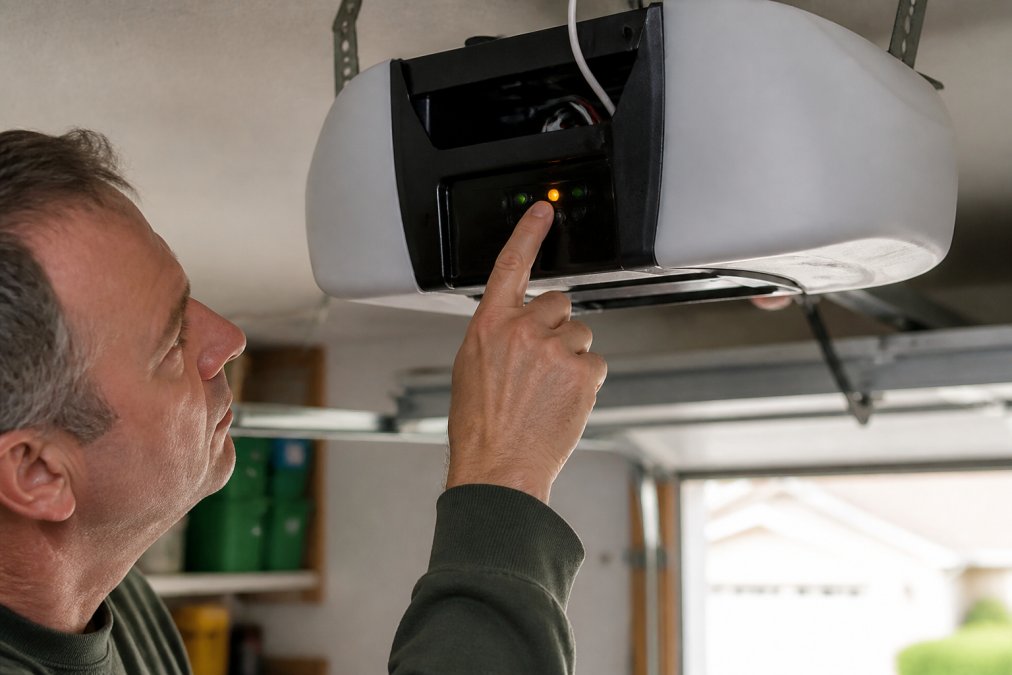
A solid green LED typically means the opener is powered and connected to Wi-Fi. A blinking green light indicates the opener is searching for a network. A red LED usually signals a connectivity error or authentication failure.
Check your opener's manual for the specific meaning of each LED pattern on your model. Some openers use different color combinations. A blinking red light might mean the password is incorrect, while a solid red light could indicate a network timeout.
If the LED shows a connectivity error, verify your Wi-Fi network is still broadcasting.
Advanced Troubleshooting for Smart Garage Door Connectivity
When standard troubleshooting doesn't resolve your smart garage door connectivity issues, advanced network configuration may be necessary.
Mesh Network Compatibility
Mesh Wi-Fi systems create multiple access points throughout your home. Some smart garage door openers struggle to maintain stable connections when switching between mesh nodes. Your opener may disconnect when moving between the main router and satellite units.
VPN and DNS Interference
Virtual private networks and custom DNS settings can block your garage door opener's cloud server connection. If your opener connects locally but can't reach remote features, VPN or DNS interference may be the cause.
Mobile Device Permission Settings
Modern smartphones restrict app permissions by default. Your garage door app may lack the permissions needed for full functionality. Check that the app has permission to access your device's location, Bluetooth, and network settings.
Hardware Age and Signal Interference
Older garage door openers may use outdated Wi-Fi protocols that don't work well with modern routers. Openers manufactured before 2015 often struggle with current network standards. If your opener is more than ten years old, upgrading to a newer model may be more practical than troubleshooting.
Common Mistakes to Avoid
Many people make the same mistakes when troubleshooting smart garage door connectivity. Avoiding these errors saves time and frustration.
Frequently Asked Questions
Why is my smart garage door opener not responding to commands?
Unresponsive smart garage door openers typically result from Wi-Fi disconnection, weak signal strength, or outdated firmware. Start by power cycling both your opener and router, then verify your network credentials match what the app expects. Check that your 2.4GHz or 5GHz frequency band setting aligns with your router's broadcast. If the issue persists, update the firmware through your mobile application. VPN connections or DNS changes can also block communication between your phone and the cloud server, so disable those temporarily to test connectivity.
How do I put my smart garage door opener into pairing mode?
Pairing mode activation varies by manufacturer, but most openers enter pairing mode after a factory reset or through a dedicated button press held for 10-15 seconds. Consult your opener's manual or mobile app for the exact sequence. Once in pairing mode, your device discovery process should find the opener within 30 seconds. The LED indicator typically blinks rapidly or changes color to signal pairing readiness. If pairing fails, power cycle the opener and try again, ensuring you're within strong Wi-Fi range of your router.
Can signal interference cause garage door connectivity problems?
Yes. Signal interference from microwaves, cordless phones, baby monitors, and other 2.4GHz devices can significantly degrade Wi-Fi signal strength to your garage door opener. Metal garage structures, thick walls, and distance from your router also attenuate the wireless signal. If your opener is far from the router, consider relocating the router, using a mesh network system, or installing a Wi-Fi extender closer to the garage. Test connectivity by temporarily moving the opener indoors near the router to rule out range or interference as the cause.
Does unplugging the garage door opener reset the Wi-Fi connection?
Unplugging the opener for 30 seconds performs a soft reset that clears temporary connectivity glitches and can resolve latency or authentication errors. However, it does not erase your saved network credentials or return the opener to factory defaults. A true factory reset requires holding a dedicated reset button for 15-30 seconds or accessing a reset option in the mobile application. Use the soft reset (unplugging) first for quick fixes, and reserve the factory reset for persistent problems that require starting the pairing process over.